Calendar page
See cash flow day by day and bring clarity into your trading finances.
Written By Delyan
Last updated 9 months ago
This article explains how to use the Prop Firm Trading → Calendar page to view payouts, expenses, challenge fees, and recurring payments on the exact days they occur.
The Calendar gives you a clear, date-based view of your cash flow so you can plan withdrawals, deposits, and upcoming fees without surprises.
How It Works
Calendar Overview
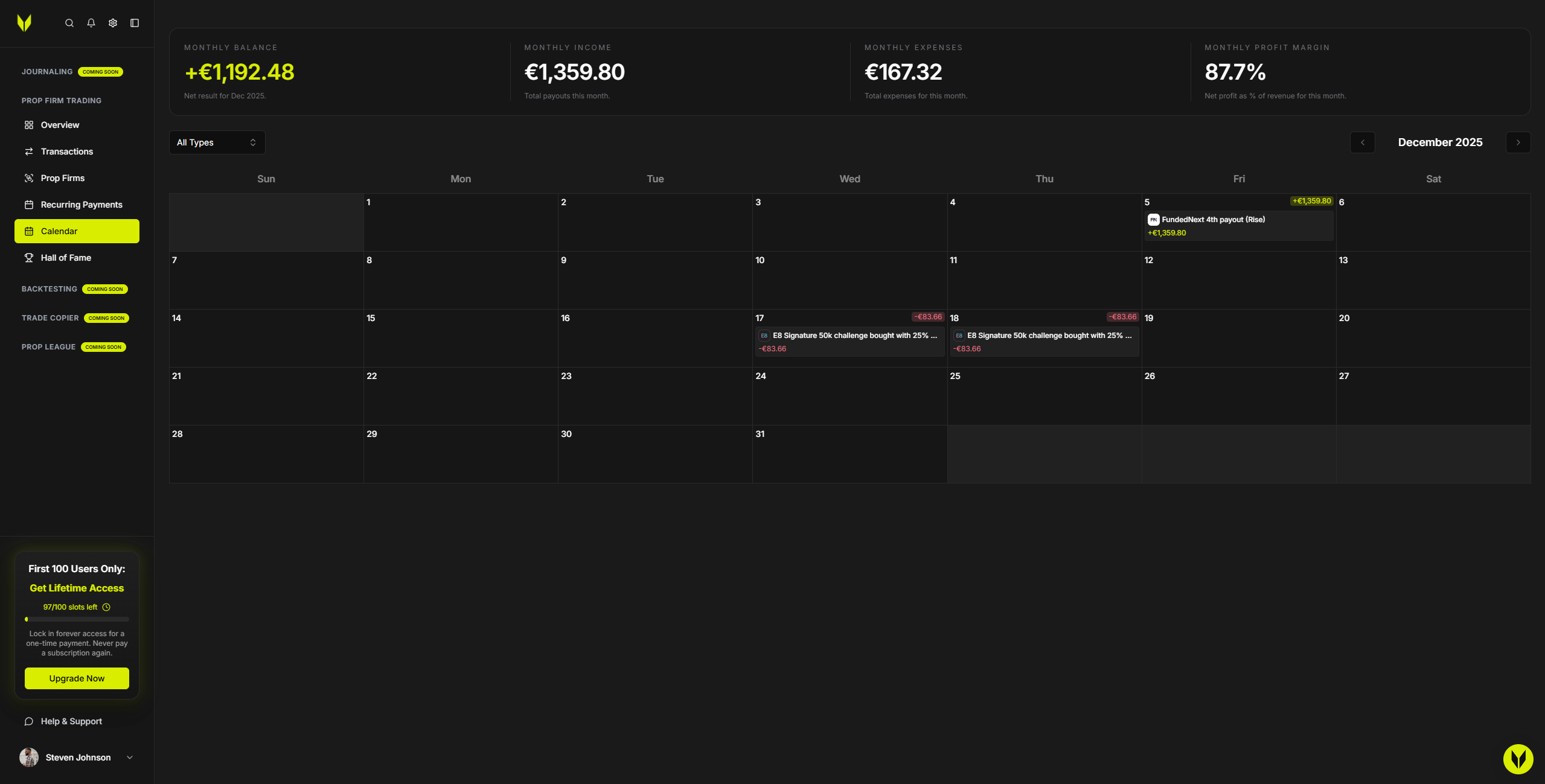
The Calendar overlays income, expenses, challenges, and recurring bills into a monthly grid. Each entry appears on the day it lands and updates automatically when your data changes.
Using the Calendar
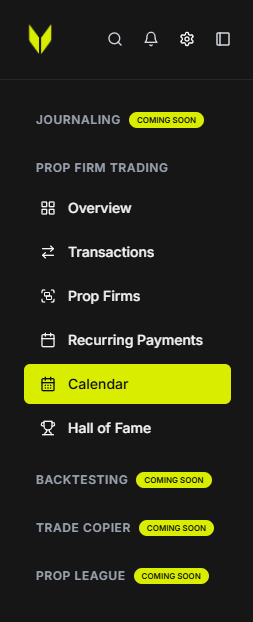
Step 1 – Open Calendar
From the sidebar, navigate to:
Prop Firm Trading → Calendar
Step 2 – Navigate Between Months
Use the left and right arrows to move between months
The calendar grid adjusts automatically for each month
Step 3 – Apply the Type Filter
Use the Type filter to show:
All
Income
Expenses
Challenges
This allows you to isolate specific types of cash flow.
Step 4 – Review Daily Entries
Each day cell displays:
Firm or vendor logo / color
Amount
Short label
Hover (desktop) or tap (mobile) to view:
Firm or vendor name
Description
Amount
Frequency
Recurring items are marked with (Recurring)
Step 5 – Understand Recurring Payments
Recurring payments appear on their billing dates
Paused or expired items stop appearing after their pause or end date
Resume paused items from Recurring Payments to show them again
Important Notes
All amounts respect your account currency
Totals include multipliers and activation fees from Transactions
Calendar updates automatically as data changes
Troubleshooting
Calendar Appears Empty
Add payouts or expenses in Transactions
Create recurring items in Recurring Payments
Ensure the Type filter is not hiding entries
Recurring Items Missing
Confirm the billing date falls within the visible month
Make sure the item isn’t paused or expired
Related Articles
Still need help? Ask the team