Recurring payments page
Predict your monthly costs with recurring payments
Written By Delyan
Last updated 9 months ago
This article explains how to use the Prop Firm Trading → Recurring Payments page to track subscriptions and repeating expenses, forecast monthly costs, and manage active, paused, or expired items.
Recurring Payments help you understand ongoing costs and keep accurate projections across Overview and Calendar.
How It Works
Recurring Payments Overview
The Recurring Payments page lets you record expenses that repeat over time. Items can be active, paused, or expired, and each state affects projections differently.
Adding or Editing a Recurring Payment
Step 1 – Open Recurring Payments
From the sidebar, navigate to:
Prop Firm Trading → Recurring Payments
Step 2 – Add or Edit an Item
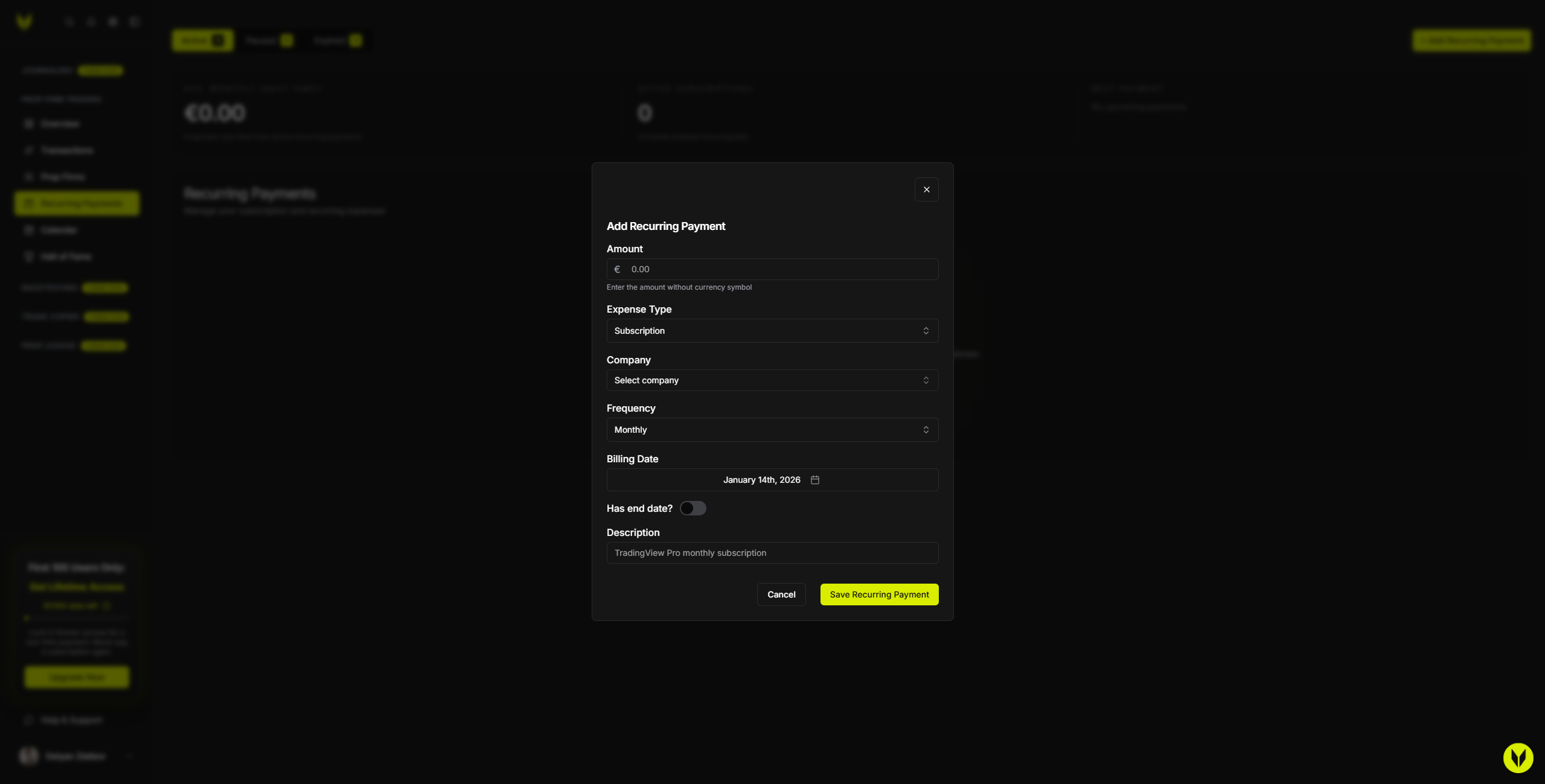
Click + Add Recurring Payment or Edit on an existing item.
Step 3 – Fill Required Fields
Amount (required)
Expense Type:
Subscription
Software / Tools
Education / Course
Equipment / Hardware
Other
Company (required)
Frequency (Weekly / Monthly / Quarterly / Yearly)
Billing Date (next charge date)
Description (required)
Optional fields:
Has end date? (automatically stops the item)
Paused since (shown when editing paused items)
Step 4 – Save and Manage Status
After saving, you can:
Pause / Resume an item (keeps history but stops forecasts)
Cancel an item (sets an end date)
Delete an item (removes it entirely)
Using Recurring Payments
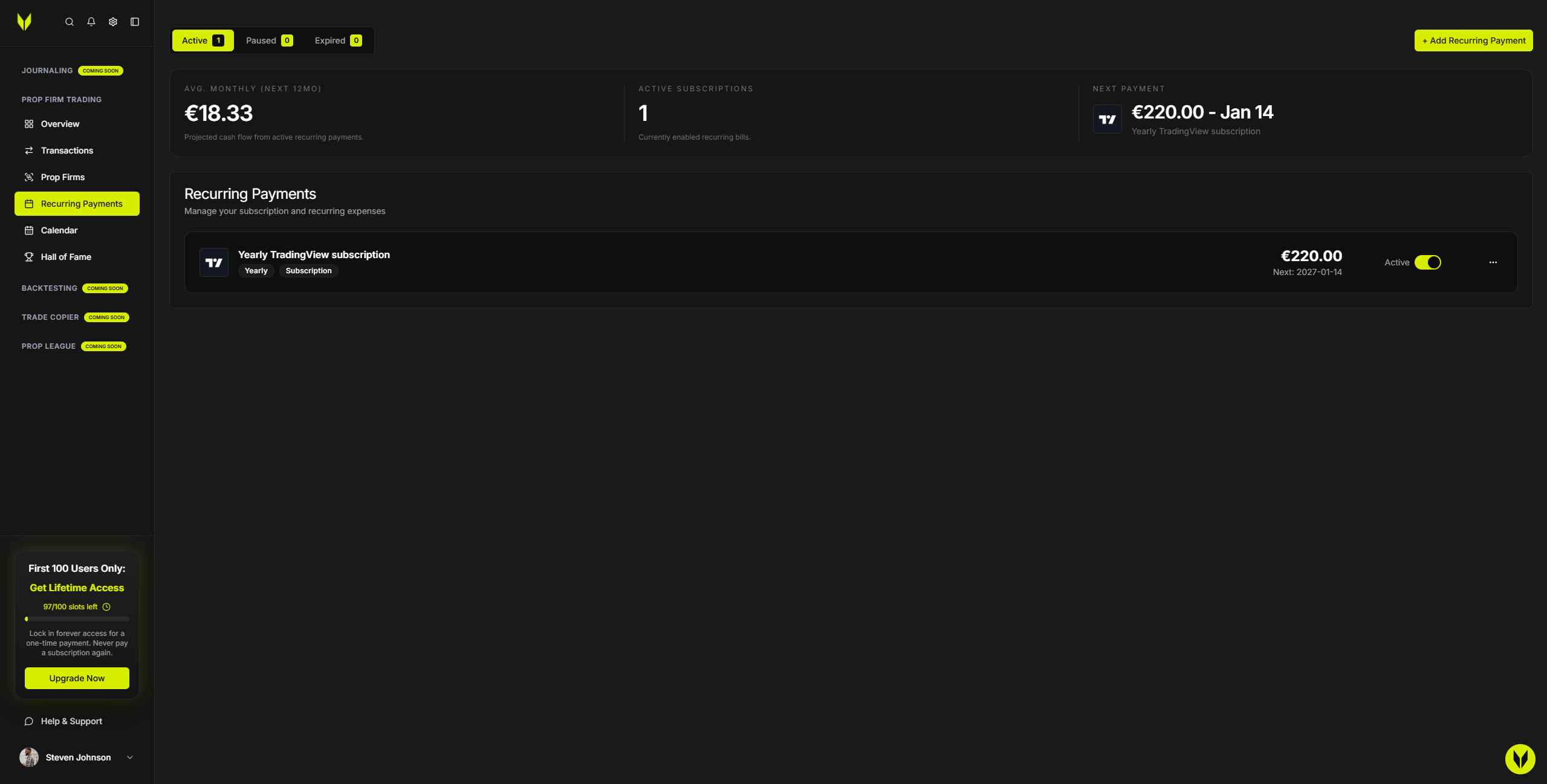
Step 1 – Review Status Tabs
View items by status:
Active
Paused
Expired
Each tab shows a count so you know what’s currently running.
Step 2 – Check Summary Cards
At the top of the page, summary cards display:
Average monthly cost projection (next 12 months)
Active subscription count
Next payment (amount and date)
Step 3 – Calendar Integration
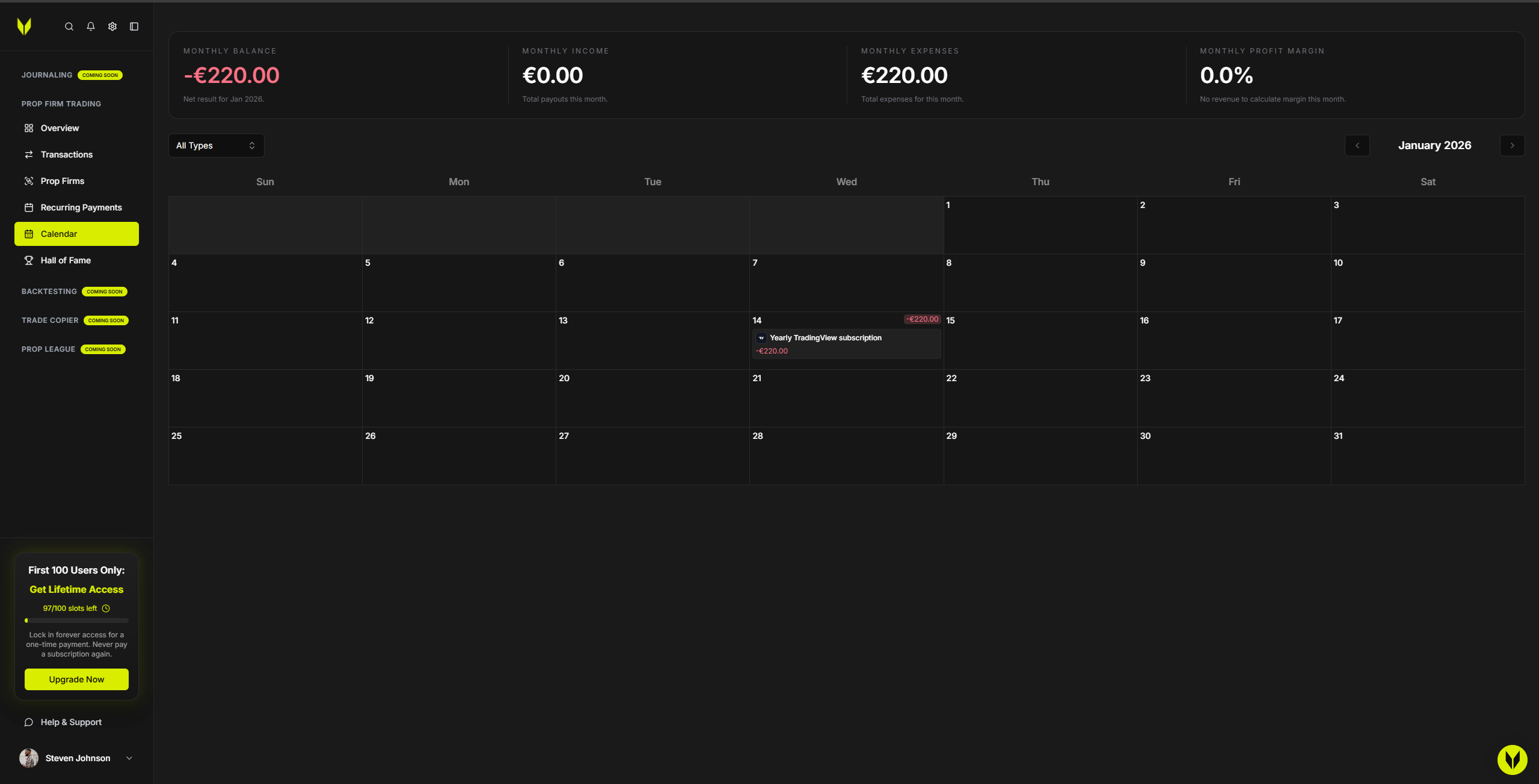
Recurring payments:
Appear on the Calendar on their billing dates
Feed monthly projections and cost metrics automatically
Important Notes
Read-only mode (when your subscription fails) disables adding, editing, pausing, canceling, and deleting
Weekly, quarterly, and yearly items are annualized into the average monthly projection
Paused items retain history and can be resumed at any time
Troubleshooting
Next Payment Date Looks Incorrect
Check the selected Frequency
Verify the Billing Date
Confirm the item isn’t paused or ended earlier than expected
Item Missing from Calendar
Ensure Frequency and Billing Date are set
Confirm the item isn’t paused or expired for that month
Related Articles
Still need help? Ask the team