Learn how to manage your profile settings
Written By Delyan
Last updated 9 months ago
Summary
This article explains how to use the Settings page to manage your account, profile, trading preferences, security, billing, and notifications.
The Settings page is the central place where you control how your account behaves across the app. Each section is saved independently, ensuring your data stays accurate and up to date.
How It Works
Settings Page Overview
The Settings page is divided into multiple tabs. Each tab controls a specific part of your account and includes its own Save button.
Available tabs:
Profile
Security
Trading
Social
Billing
Preferences
Changes are applied only after saving within the active tab.
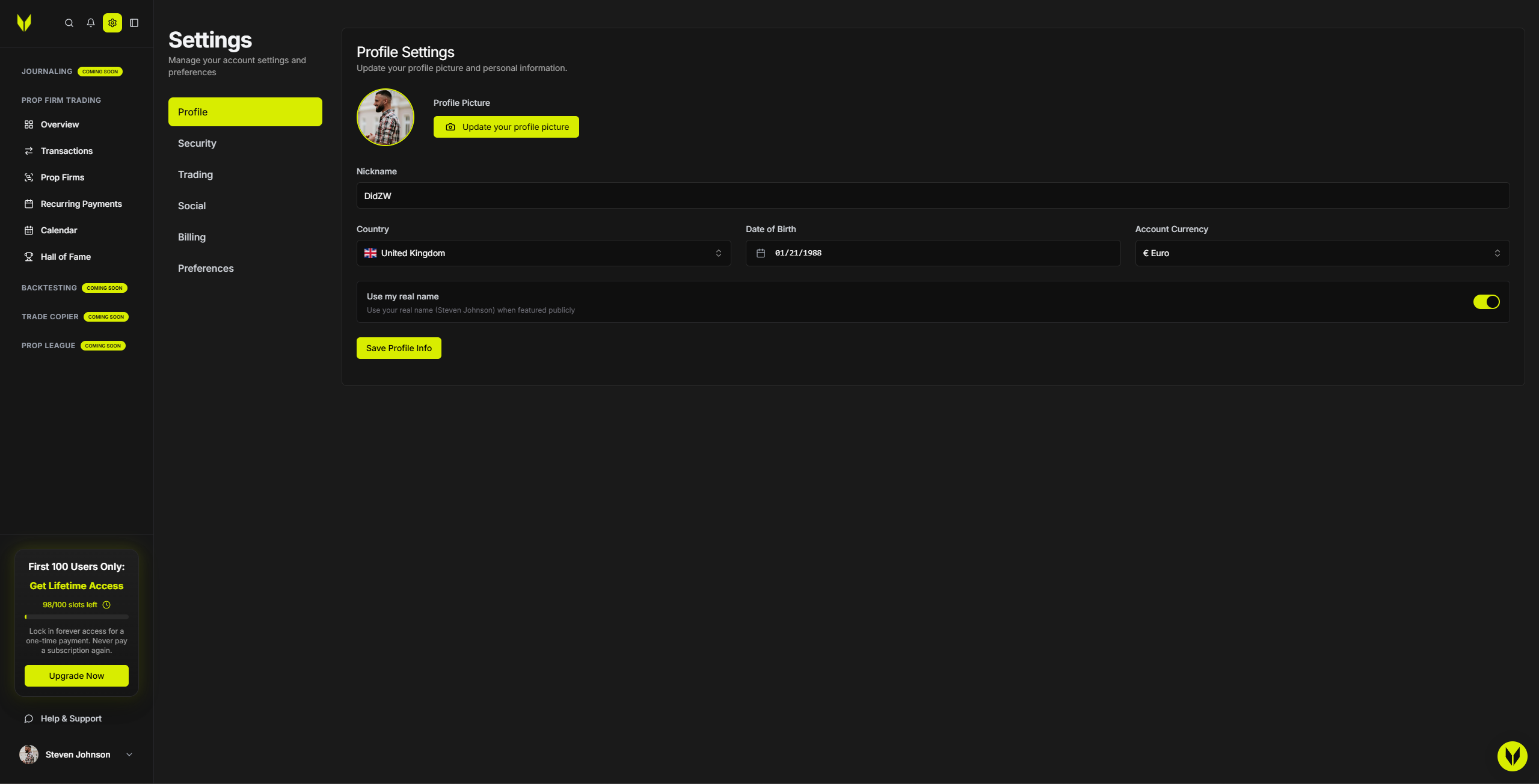
Profile Settings
Step 1 – Open Profile Settings
Navigate to Settings from the sidebar or go directly to:/user/settings/profile
Step 2 – Update Profile Information
You can manage:
Profile picture (upload or remove)
Nickname
Country
Birthday (future dates are not allowed)
Account currency (EUR / USD / GBP / JPY / CAD / AUD / CHF / NZD)
Public name display (Real name or Nickname)
Step 3 – Save Changes
Click Save Profile Info to apply your updates.
Security Settings
Step 1 – Open the Security Tab
Switch to the Security tab inside Settings.
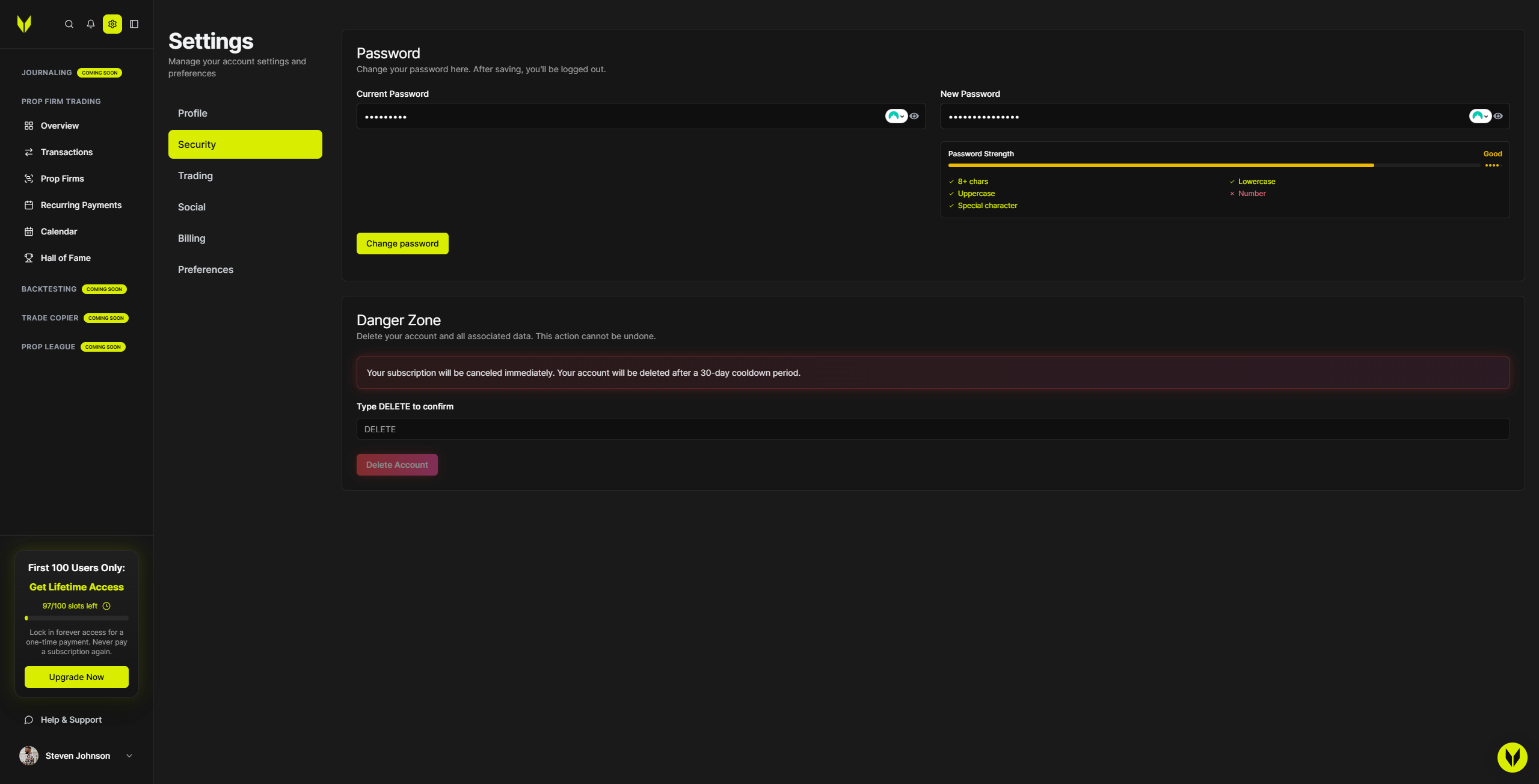
Step 2 – Manage Your Password
Change your password using Current Password and New Password
New passwords must reach “Good” strength or higher
You can toggle password visibility while typing
If your account does not yet have a password, you can use Setup Password instead.
Step 3 – Save Changes
Click Save to confirm your new password.
Trading Settings
Step 1 – Open the Trading Tab
Navigate to the Trading section inside Settings.
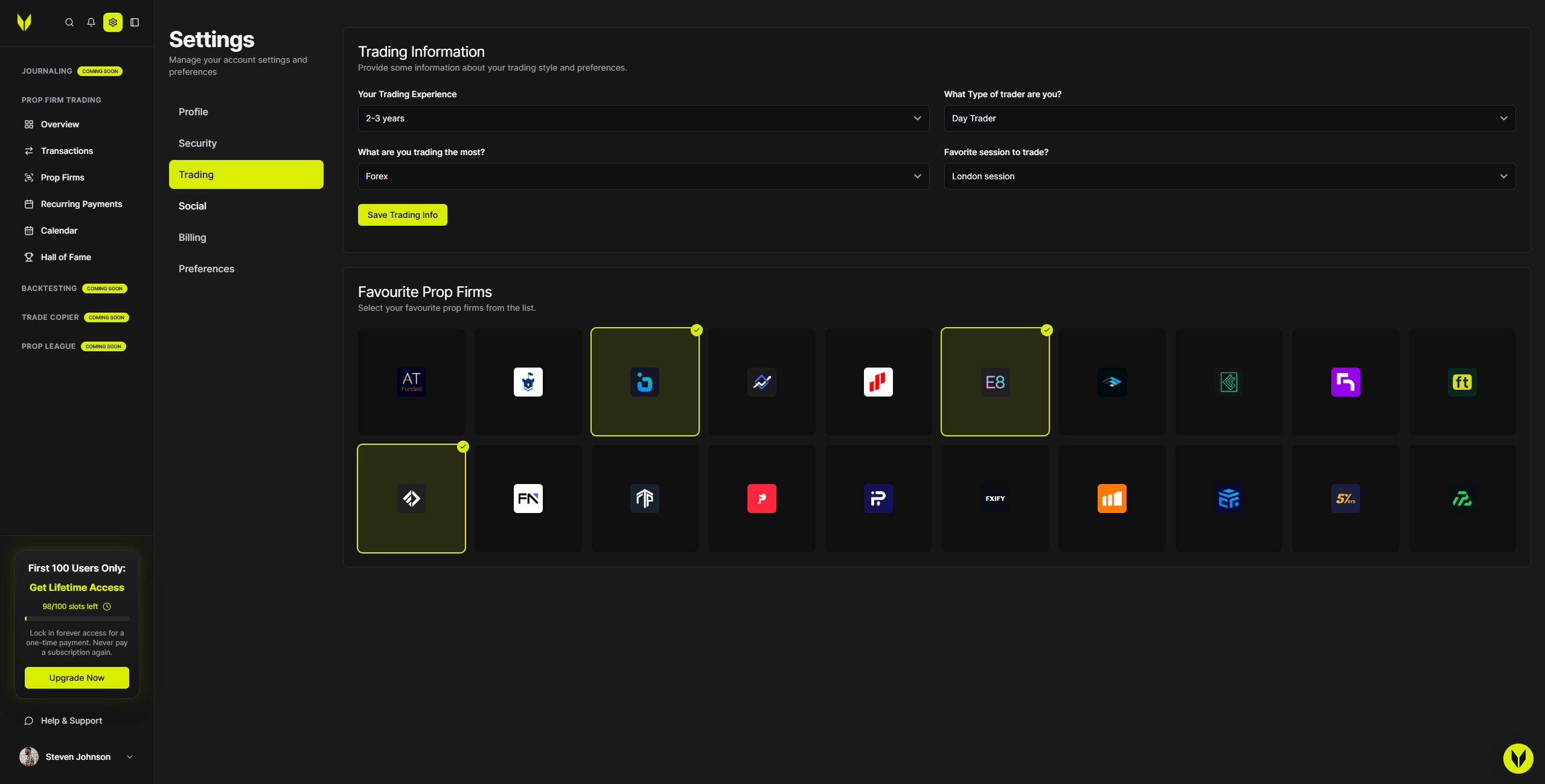
Step 2 – Set Trading Preferences
You may optionally fill in:
Trading experience (from less than 1 month to 5+ years)
Trading style (Scalper / Day / Swing)
Asset class (Crypto / Forex / Indices / Commodities / Metals)
Favorite trading session (Tokyo / London / New York)
Step 3 – Save Changes
Click Save Trading Info to apply your preferences.
Social Settings
Step 1 – Open the Social Tab
Navigate to the Social section inside Settings.
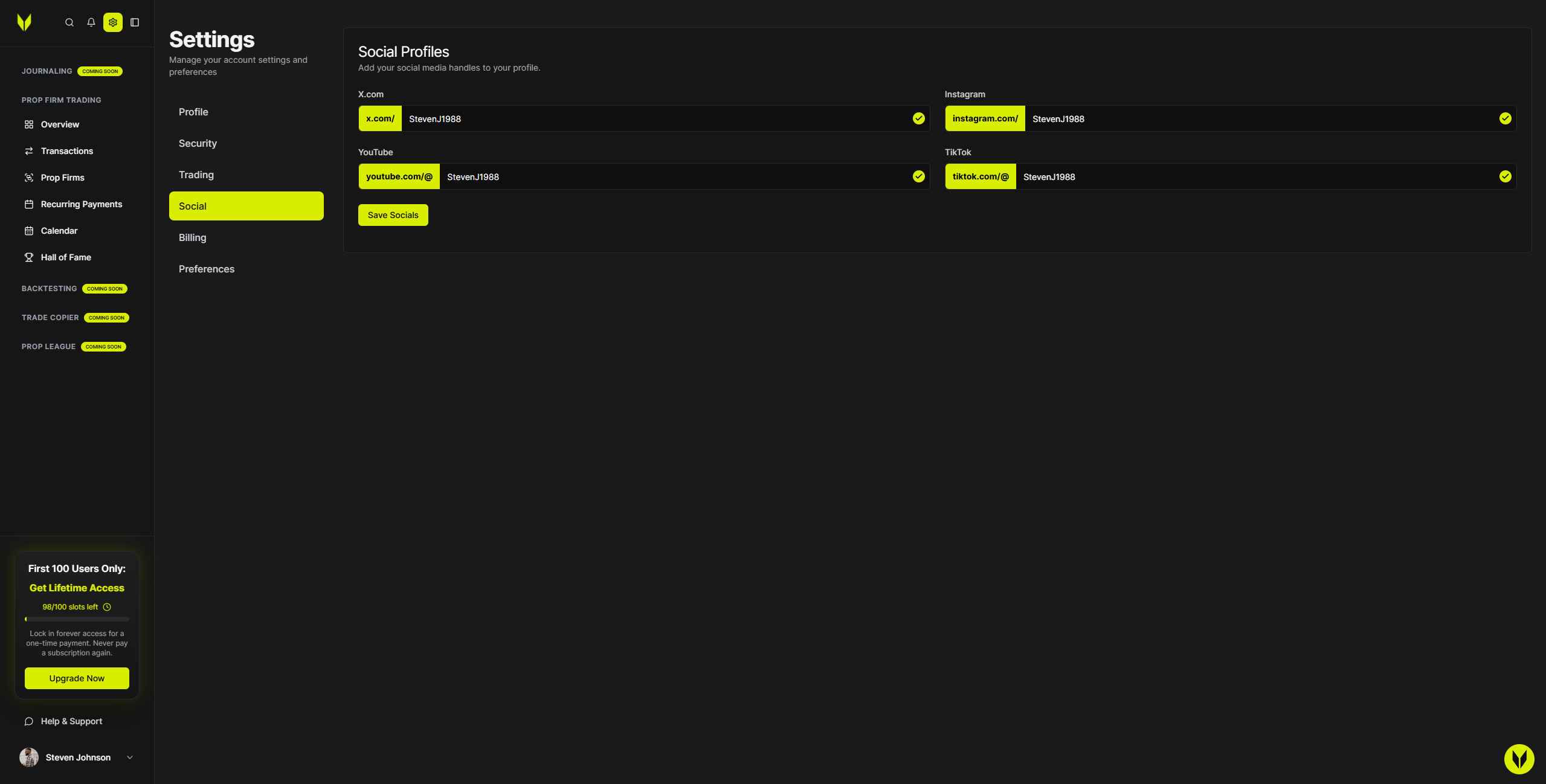
Step 2 – Add Social Handles (Optional)
You may add handle-only usernames for:
X (Twitter)
Instagram
YouTube
TikTok
Important:
Handles only (no links or spaces)
Maximum 32 characters per handle
Step 3 – Save Changes
Click Save Socials to update your profile.
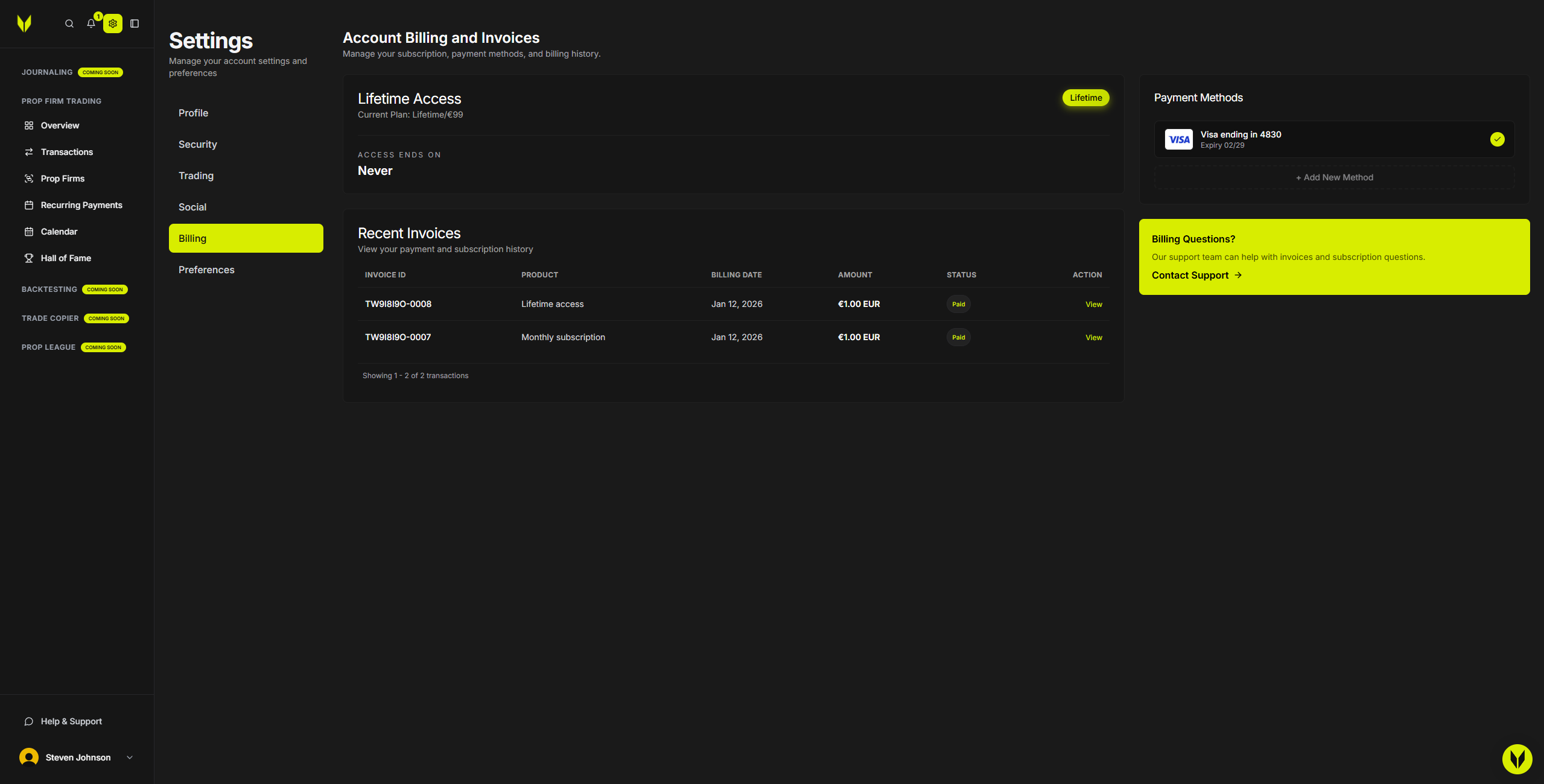
Billing Settings
Step 1 – Open the Billing Tab
Navigate to the Billing section inside Settings.
Step 2 – Manage Your Subscription
From here you can:
View your current plan
Open Manage Plan to compare or upgrade
Cancel your subscription (starts the cancellation flow)
Step 3 – Manage Payment Methods
Update payment methods via Stripe
Add a new payment method using + Add New Method
Access receipts and invoices from Transaction History
For billing-related issues, use Contact Support.
Preferences
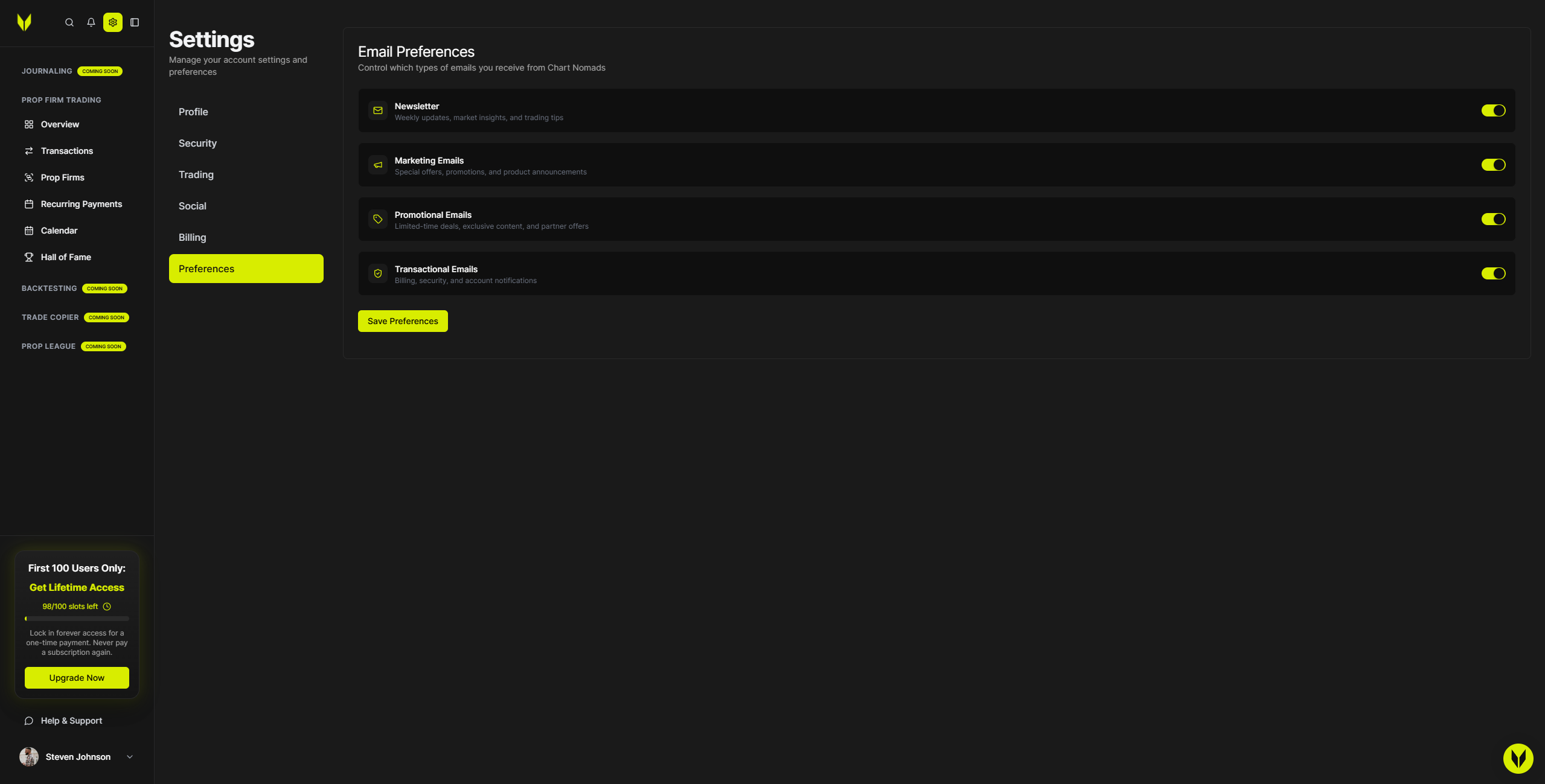
Step 1 – Open the Preferences Tab
Navigate to Preferences inside Settings.
Step 2 – Manage Email Preferences
Control marketing and notification emails
Transactional emails (billing, security, account) cannot be disabled
Step 3 – Save Changes
Click Save to apply your preferences.
Important Notes
Each tab must be saved individually
Leaving a tab without saving will discard changes
Account cancellation and deletion are managed through Billing
Troubleshooting
Changes Not Saving
Ensure required fields are filled
Make sure social handles are not URLs
Try saving again
Currency Not Updating
Save changes in the Profile tab
Refresh the page
Currency updates apply across Overview, Transactions, and Hall of Fame
Related Articles
Still need help? Ask the team