Transactions Page
Run your trading like a business, track every transaction in 1 unified interface.
Written By Delyan
Last updated 9 months ago
This article explains how to use the Prop Firm Trading → Transactions page to log payouts and expenses, attach proof files, and export clean records when needed.
The Transactions page keeps all income and expenses in one place, ensuring your reports, certificates, and Hall of Fame entries remain accurate and verifiable.
How It Works
Transactions Page Overview
The Transactions page uses a single table to manage payouts and expenses. Each row can include proof files, and all data can be filtered, edited, and exported.
Adding or Editing a Payout
Step 1 – Open Add Prop Firm Income
From Prop Firm Trading → Transactions, click Add Payout.
Step 2 – Fill Required Fields
Amount (required): up to 8 digits and 2 decimals
Use Multiplier if the same payout was received multiple times
Prop Firm (required): select the firm for correct grouping
Payout Date (required): future dates are not allowed
Description (required): e.g. “Phase 1 Payout”
Step 3 – Optional Details
Processing time (days / hours / minutes)
Certificate upload (PDF or image; multiple allowed when multiplier > 1)
Notes
Step 4 – Save
Click Save to add or update the payout.

Adding or Editing an Expense
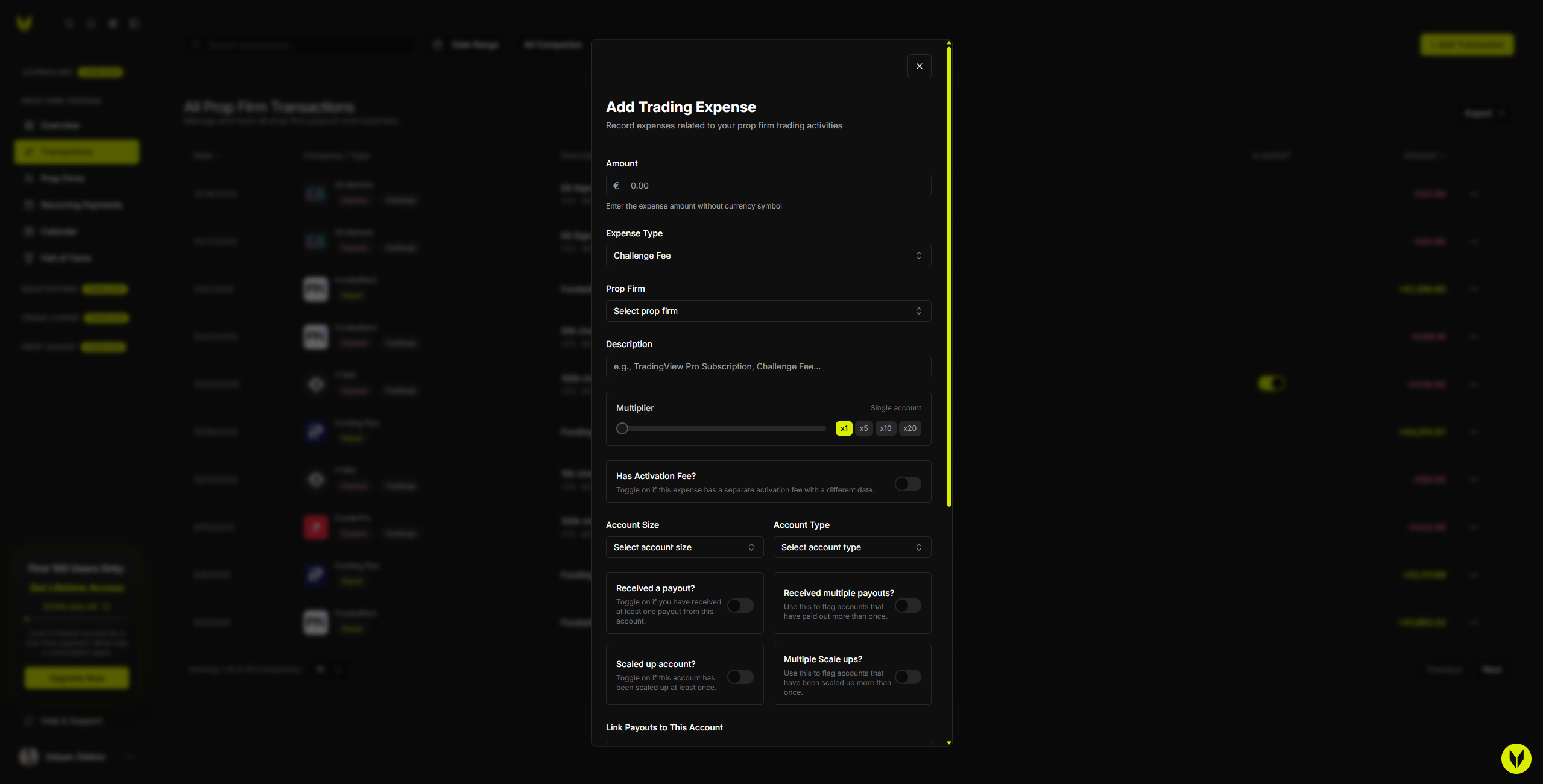
Step 1 – Open Add Trading Expense
From Prop Firm Trading → Transactions, click Add Expense.
Step 2 – Fill Required Fields
Amount (required): up to 8 digits and 2 decimals
Expense Type (required):
Challenge Fee
Subscription
Software / Tools
Education / Course
Equipment / Hardware
Other
Important:
Challenge Fee requires selecting a Prop Firm
Other types require selecting a Company
Step 3 – Challenge-Specific Options (Optional)
Available only for Challenge Fee expenses:
Multiplier (for multiple identical challenges)
Activation fee (separate amount, date, and invoice)
Account size and account type (Instant Funding / 1–3 Step)
Status toggles:
Phase 1 / 2 / 3 passed
Received funding
Received payout(s)
Scaled up
Step 4 – Attach Proof (Optional)
Upload invoices (PDF, image, or document)
Multiple files allowed when multiplier > 1
Notes field available
Active toggle keeps the expense in totals without deleting it
Step 5 – Save
Click Save to add or update the expense.
Using the Transactions Table
Step 1 – Search and Filter
Search by firm name, type (payout or expense), or description
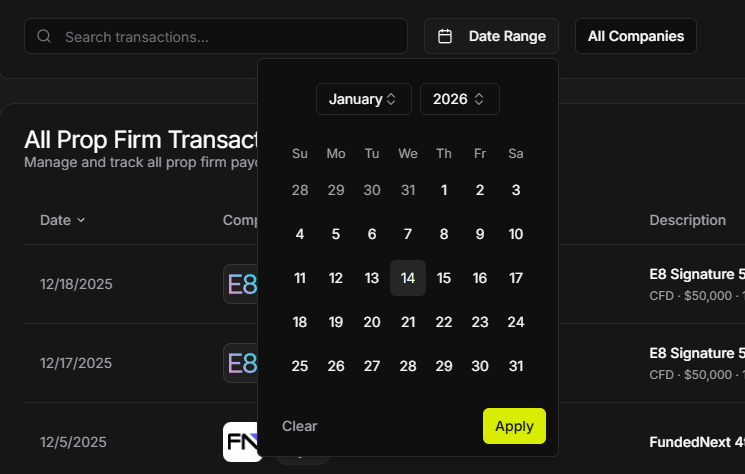
Filter by:
Date range
Companies or prop firms

Step 2 – Sort and Navigate
Sort by Date or Amount
Adjust page size (10 / 25 / 50 / 100)
Use pagination to move between pages
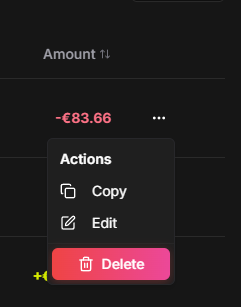
Step 3 – Row Actions
Each row includes:
Copy (prefills a new entry)
Edit
Delete
Additional indicators:
Expenses include an Active toggle
Payouts and Expenses display additional tooltip (for futures traders) when their accounts got activation fee or for example they purchase x5, x10 or x20 stacked accounts which brings extra clarity on the transactions.

Exports
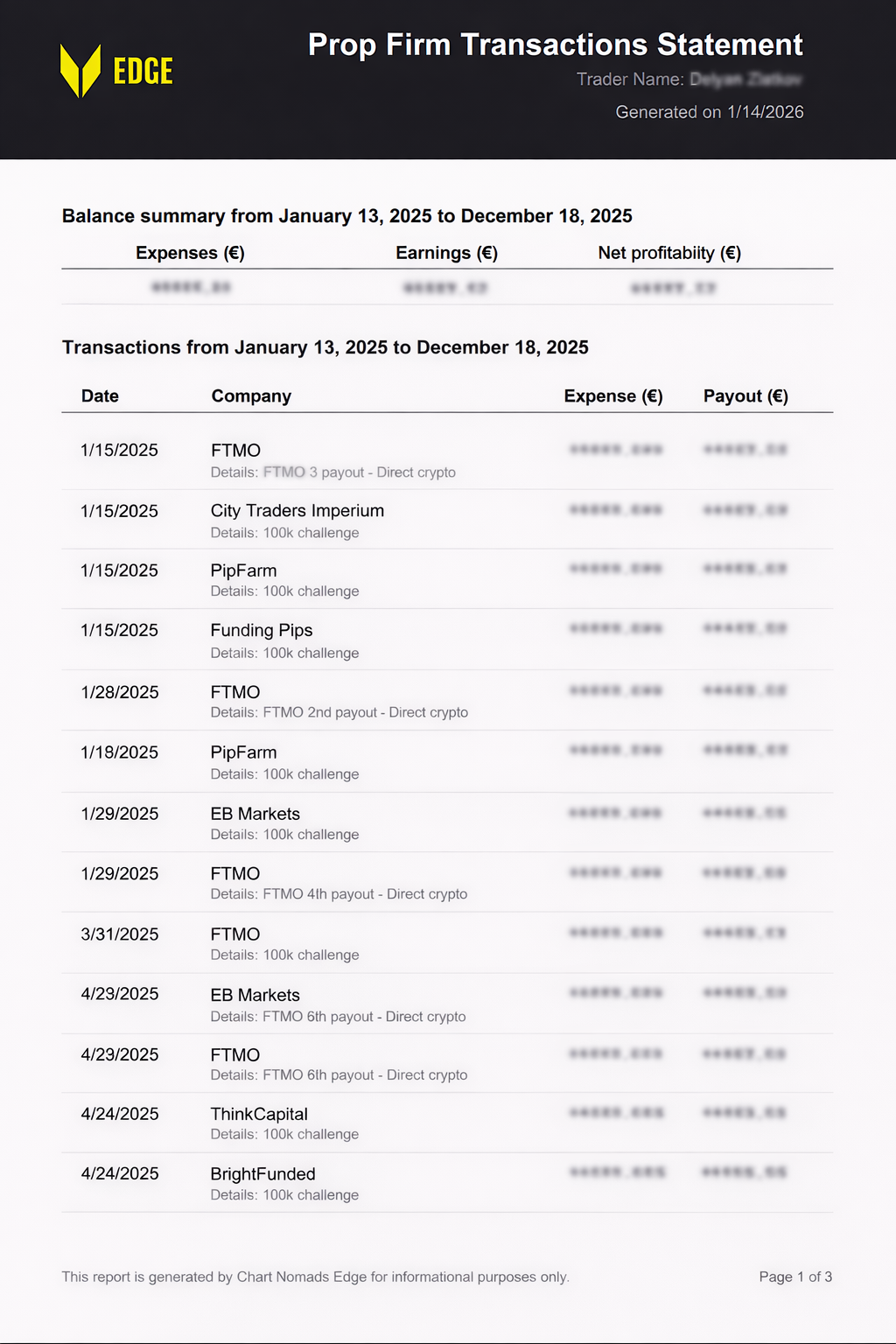
From the Transactions page, you can export pdf, csv, zip files for all your invoices and certificates which makes it great tool for accounting purposes:
PDF: formatted statement with totals and date range
CSV: raw data for spreadsheets
ZIP: download all invoices or all payout certificates at once
Exports respect filters so you can choose only particular firm or specific date range like calendar year or quarter.
Important Notes
If the table is empty, use Add Payout or Add Expense to begin
User can be placed in read-only mode upon payment failure which disables:
Adding
Editing
Deleting
Exporting
Troubleshooting
Export Buttons Disabled
Make sure you are not in read-only mode caused by failed payment
Ensure at least one row is visible in the table
Can’t Save a Transaction
Fill all required fields:
Amount
Type
Firm or Company
Date
Description
Ensure amount uses a maximum of 2 decimals
Related Articles
Still need help? Ask the team