Forgot password process
Detailed guide on how to recover forgotten password.
Written By Delyan
Last updated 9 months ago
This article explains how to reset your password if you’ve forgotten it or can’t log in to your Edge account.
The password reset process is designed to be quick, secure, and straightforward, using a one-time 6-digit verification code sent to your email. Once completed, you’ll be able to log back in immediately with your new password.
How It Works
Password Reset Process
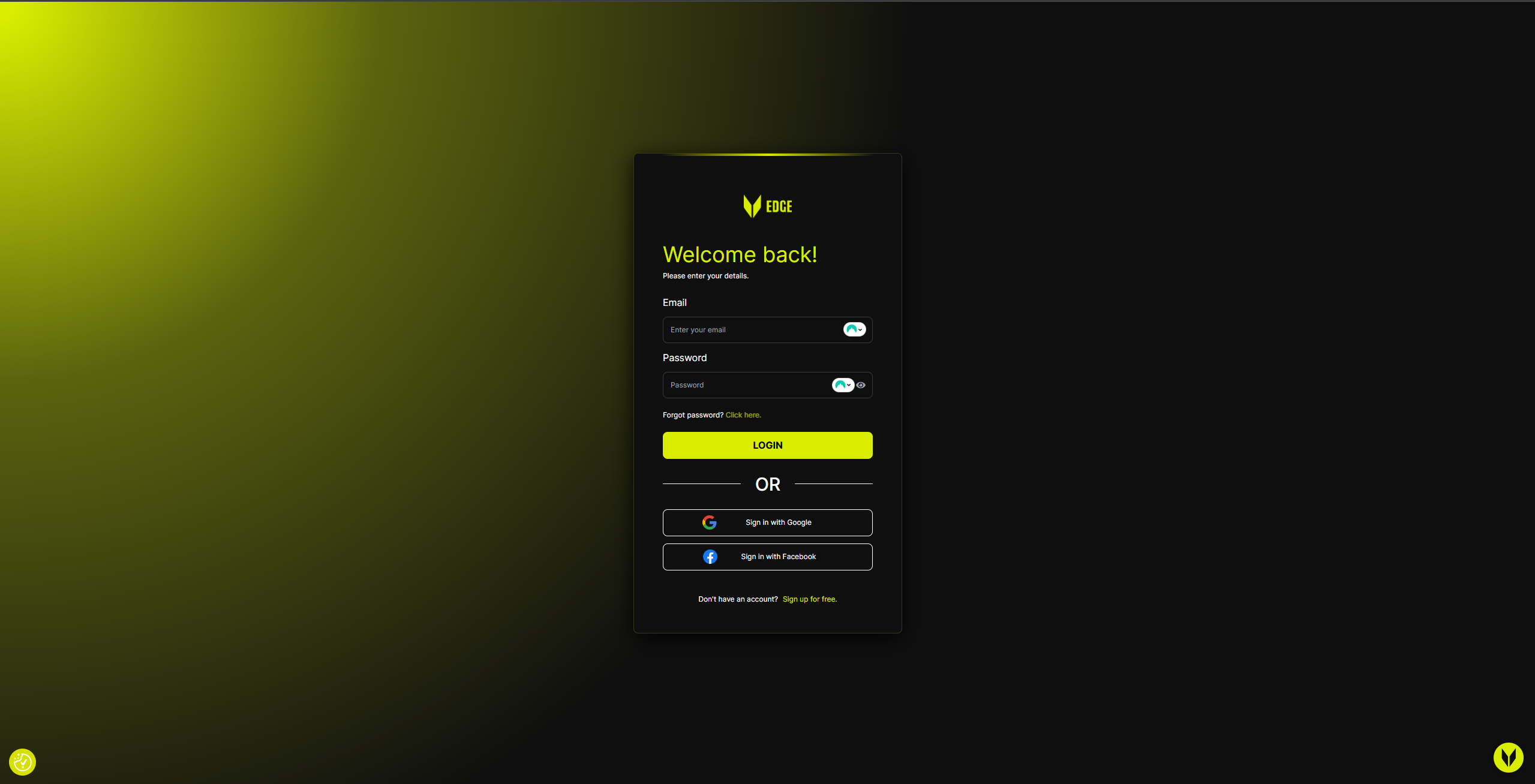
Step 1 – Go to the “Forgot Password” Page
On the login screen, click “Forgot your password?” to begin the reset process.
Step 2 – Enter Your Email Address
Enter the email associated with your Edge account
Click Request Code
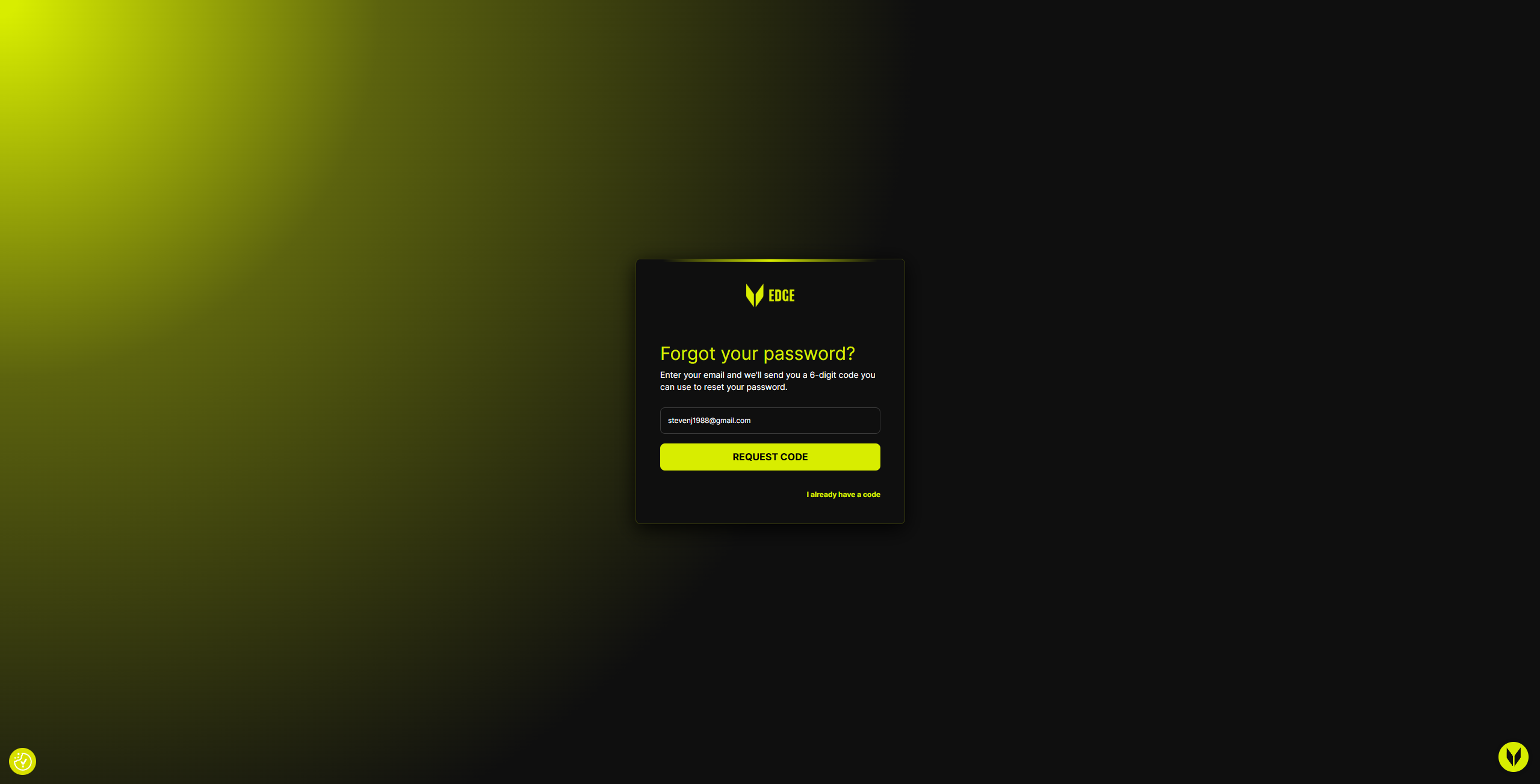
If the email is valid, a 6-digit reset code will be sent to your inbox.
Step 3 – Check Your Email for the Reset Code
Open the email from Edge
Copy the 6-digit code provided
If you don’t see the email, check your Spam / Junk folder.
Step 4 – Enter the Reset Code
Paste or type the 6-digit code into the verification fields
Once verified, you’ll be prompted to create a new password
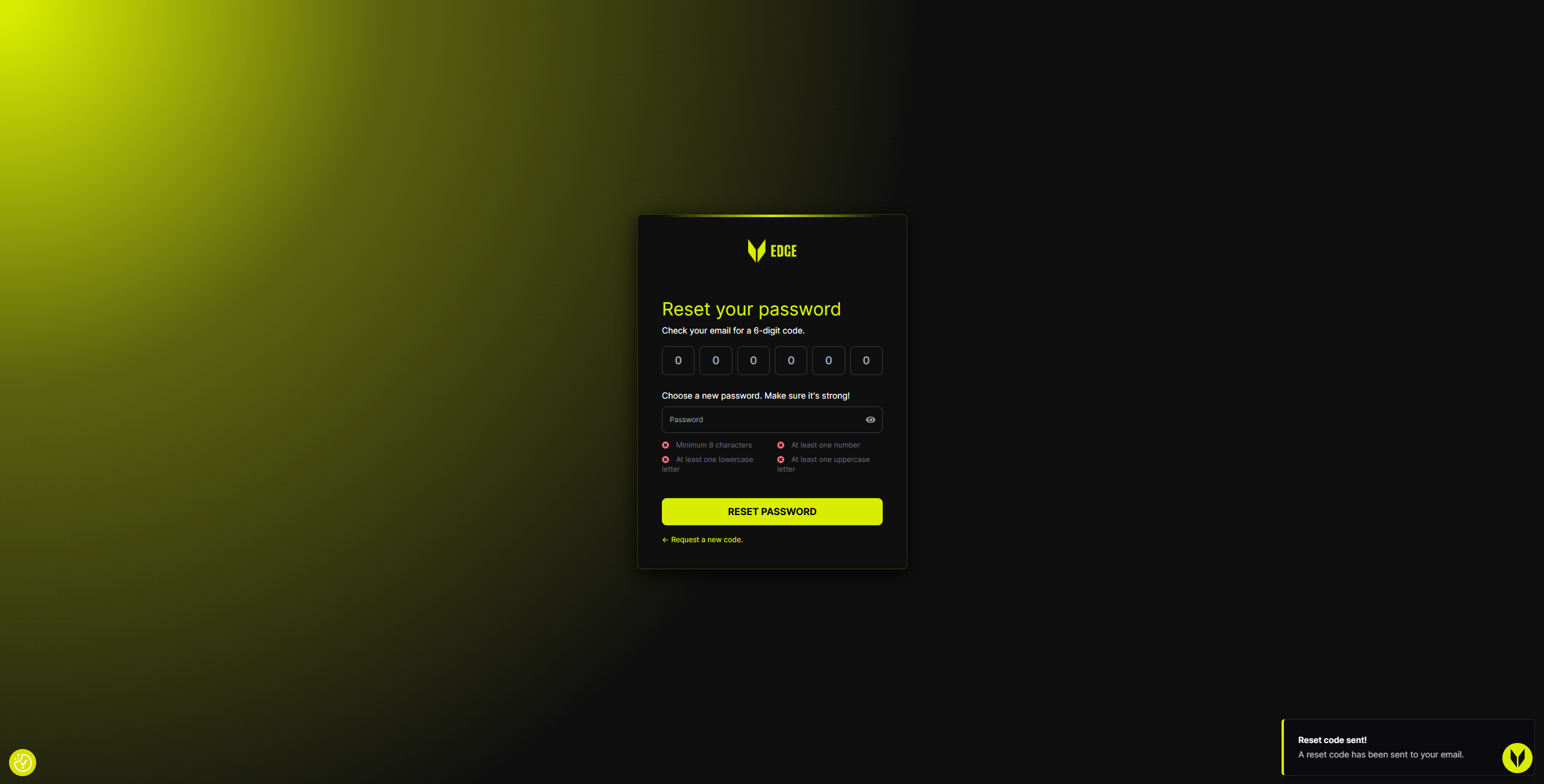
You can request a new code at any time if the current one expires.
Step 5 – Create a New Password
Choose a strong password that meets the following requirements:
Minimum 8 characters
At least one lowercase letter
At least one uppercase letter
At least one number
When all requirements are met, click Reset Password.
Step 6 – Password Reset Complete 🎉
Once successful:
You’ll see a confirmation message
You can now log in using your new password
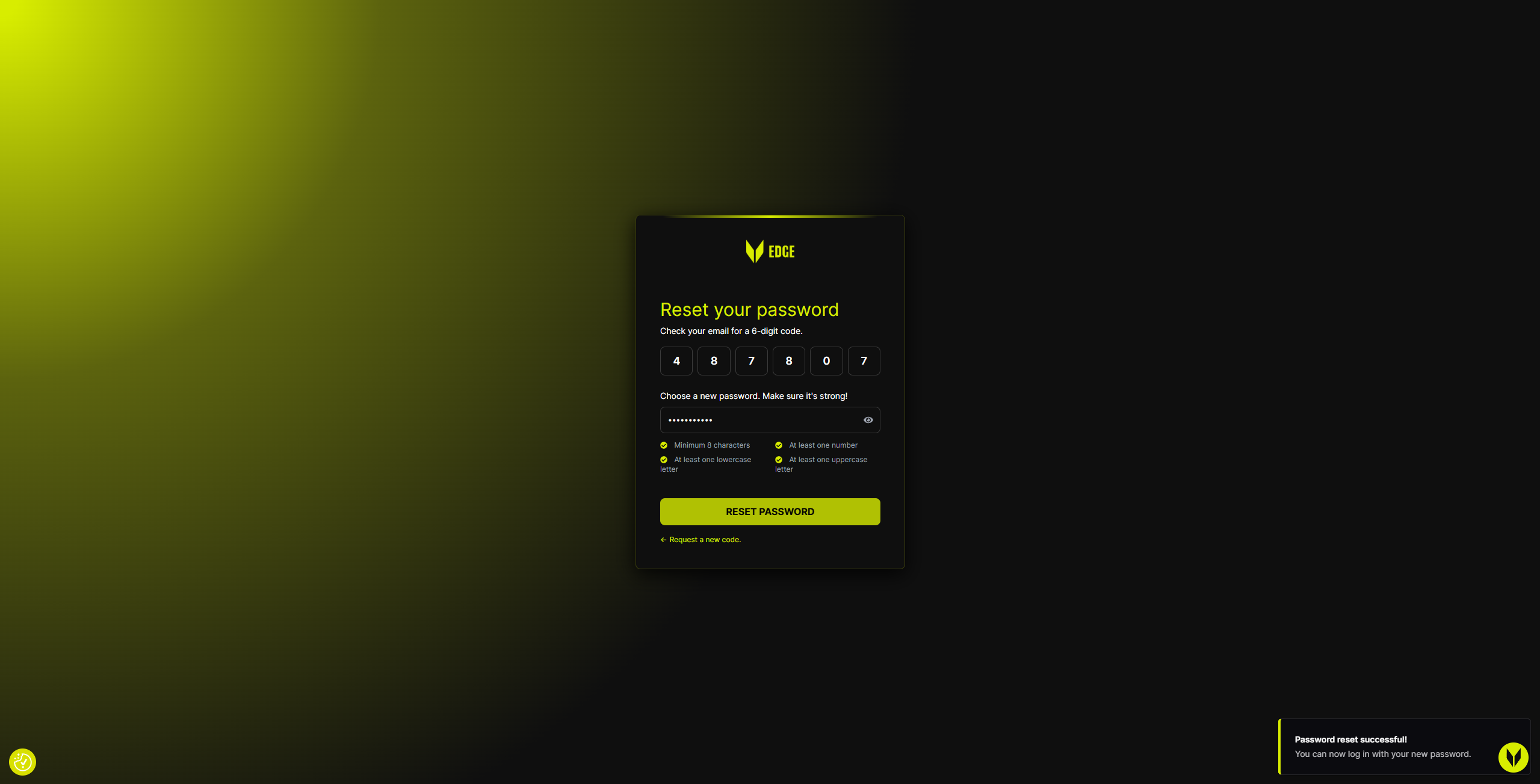
That’s it — your account access is fully restored.
Important Notes
Reset codes are time-sensitive for security reasons
You can request a new reset code if needed
Resetting your password does not affect your account data, subscription, or settings
Troubleshooting
No Reset Code Received
Check Spam / Junk folders
Confirm the email address is correct
Click Request a new code and try again
Code Not Working
Make sure you entered all 6 digits correctly
Ensure the code hasn’t expired
Request a new code if needed
Related Articles
Still need help? Ask the team